Step 1 : Power on the device
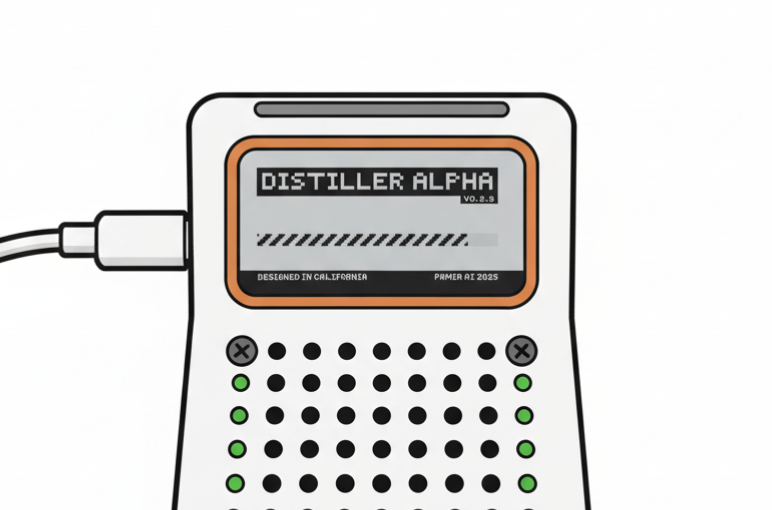
To power on the device, connect it to the provided power supply using the first USB-C port on the left side of the device.
Note, please use the power charger come with the device.Once powered on, wait for the loading screen to finish
Pamir Agent User : Download IOS App (skip to next step if you have the openclaw version)
Download the app on testflight : https://testflight.apple.com/join/AghUMmcZ If you want the Desktop app : https://github.com/pamir-ai-pkgs/manifest/releases/tag/v0.2.4if you want to switch to our software. tell your agent to run this command for you on the distiller device : sudo distiller-update check && sudo distiller-update apply
Step 2 : Initial Network Setup
First-Time WiFi Configuration
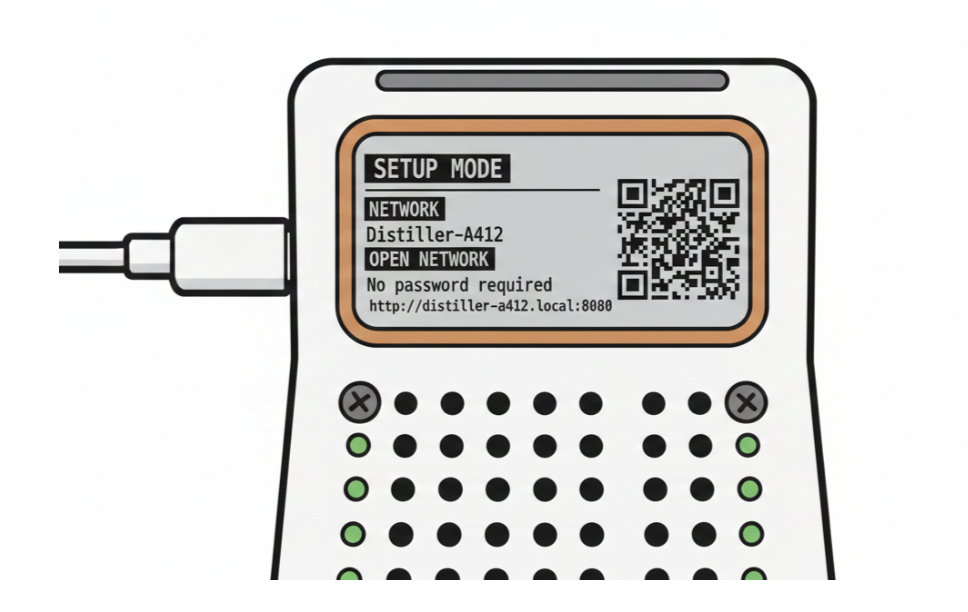
- When the device has never been connected to your network, it will automatically prompt you to scan a QR code
- Scan the QR code will auto connect your phone to the device’s Access point.
- A captive website should pop up for you to select and enter your WiFi network credentials, if not, you can visit the website manually.
- Once setup is complete, the device will connect to the network and display a new QR code
To reset wifi, visit http://your-device-ip:8080/
Accessing Clawd Bot
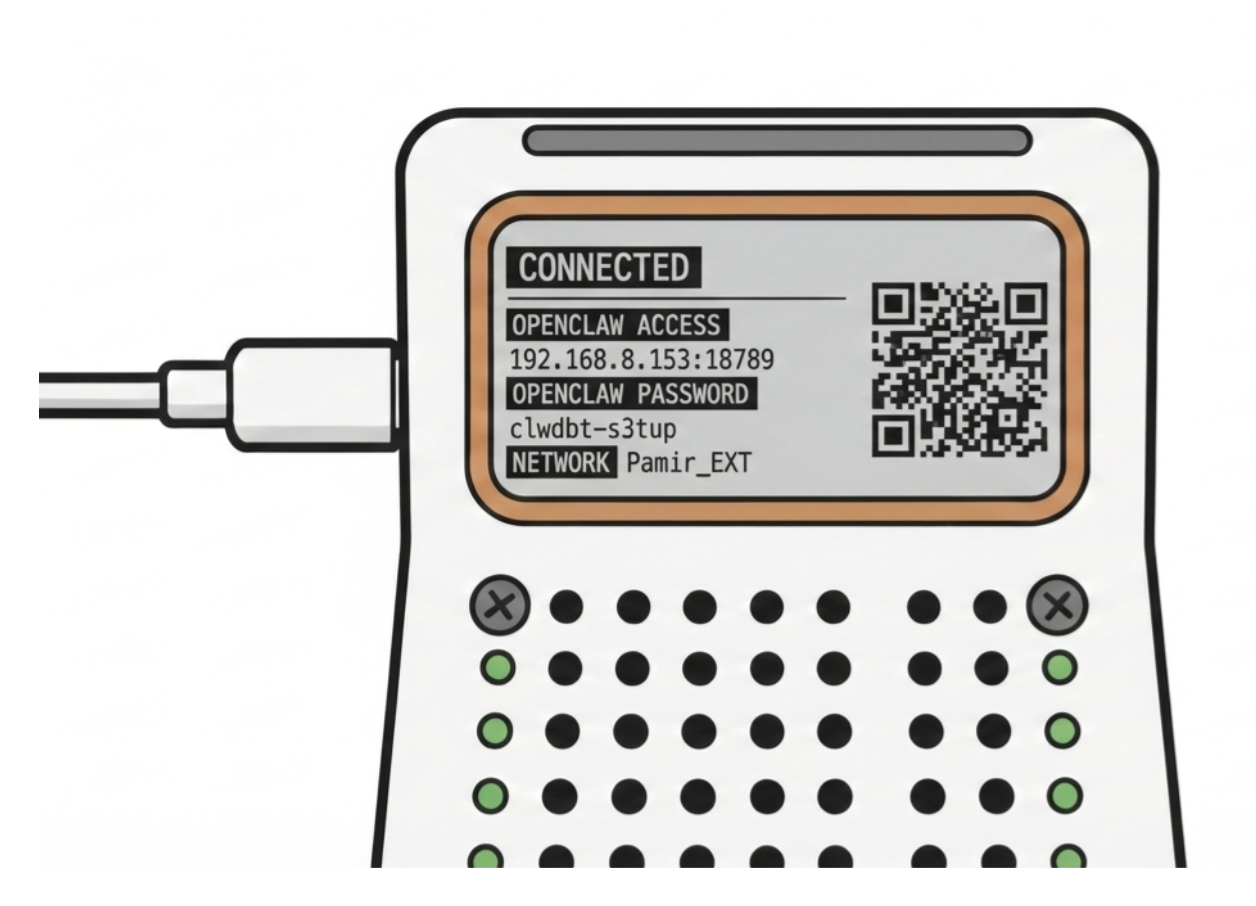
- Scan the QR code and send that link to your laptop.
- Type in the local IP address directly into your browser.
Insert Password
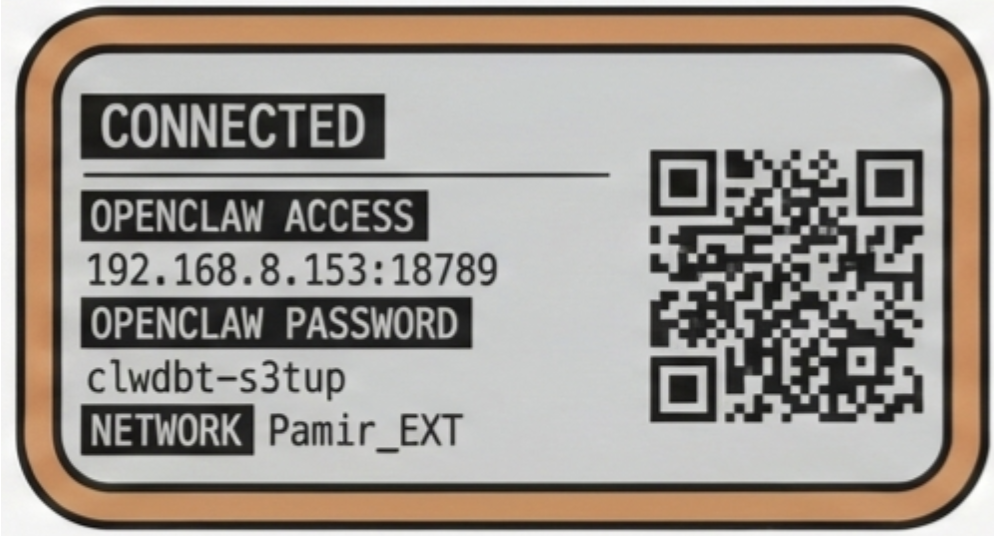
- Go to Overview tab on the left side
- Type in the password on the device’s screen
- Click connect
Connect API Key
- Go to Config tab
- Then the Environment tab
- Click All at the top
- Paste in your API key from Anthropic or OpenAI under the Custom Entries block
- Click the red Save button at the top.
Follow official openclaw setups here to get your API keys:Check at this point if you can talk to Clawdbot in the Chat channel.
https://docs.openclaw.ai/providers/anthropic#option-b-claude-setup-token
Connect Telegram

- Open Telegram
- Search for “BotFather”
- Type “/newbot”
- Follow instructions to create the bot, its will generate a Token for you
- Copy the Token.
- Go back to Clawd Bot and click on Channels
- Scroll down to find “Telegram Bot Token” and paste the token
- Scroll down and click Save.
- Now search for your bot that you just named
- Click on it and copy the Pairing Code from it
- Go back to Clawd Bot Telegram settings and scroll down to “Allow From”
- Paste the Paring Code
- Scroll all the way down and click Save.
- Check if it’s working on telegram.
Start the latest version in “sidecar” mode first\ Run it alongside the current production instance (not replacing it yet).
Test the “happy path”\ Verify the core/critical user flow works (basic smoke test).
If tests pass, do the real update
If it truely killed itself (which happens alot lol) , refer to the ssh option below to try to revive it with either claude code or codex :)
Connect Via Distiller App
Coming soon …
Optional : Access via SSH
Hardware Reference
For GPIO pin configurations and hardware connections, refer to the pin-out diagram: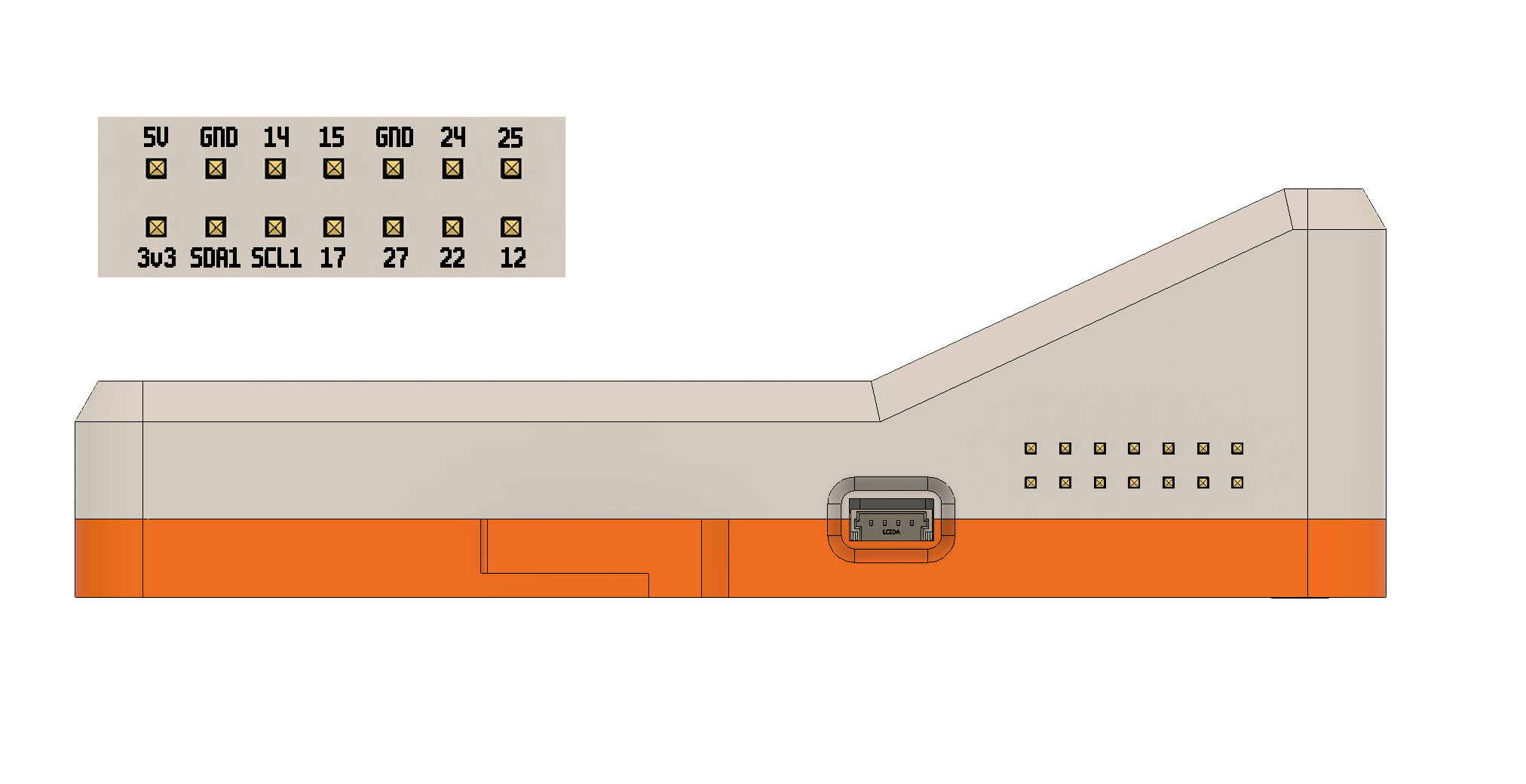
Status LED System
The device features status lights that indicate the current state of the Claude Code REPL:Monitoring Workflow
- Yellow: Your request is being processed
- Blue: Claude is actively working or requires permission
- If the LED stays blue for an extended period, Claude may be waiting for user approval
- Green: Task completion, Claude is moving on to the next operation